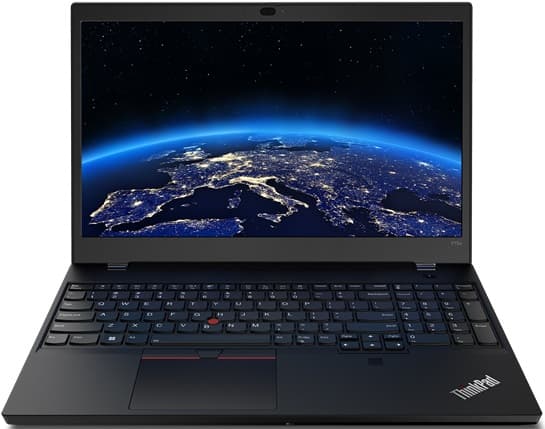
Excellent Refurbished
Lenovo · ThinkPad
Lenovo ThinkPad T15p Gen 3 - Intel Core i7 RTX 3050 Performance Laptop
Intel Core i7-12700H · 16GB RAM · 512GB SSD
15.6" · Windows 11 Pro
Dedicated graphicsS$1,075.00
From S$90/mo
✓ Up to 6-month warranty


Buying Guides
Buying a refurbished laptop can save you hundreds of dollars - but only when you know what to check. Here is a straightforward Singapore guide to specifications, condition, battery health, Windows support, warranty coverage and seller red flags.

A good refurbished laptop can give you better specifications, stronger build quality and more useful performance for your budget. But “refurbished” is not a magic word. Before buying, check the exact model, physical condition, battery health, operating-system support, warranty terms and whether the seller shows you the actual unit you will receive.
Here is how to do that without needing a degree in computer engineering.
Before paying for a refurbished laptop, confirm these eight things:
A good listing should answer most of these questions before you need to ask.
A refurbished laptop is a previously owned or previously deployed device that has been inspected, tested, cleaned and prepared for resale.
The important part is what the seller does during that preparation.
One seller may test only whether the laptop switches on. Another may check the battery, screen, keyboard, storage, ports, webcam, wireless connection, operating system and physical condition.
That is why you should not buy based on the word “refurbished” alone. Ask what was tested, what was repaired, what condition is disclosed and what happens if something goes wrong.
| Type | What it usually means | What to verify |
|---|---|---|
| Used | Sold in its current condition by an individual or dealer | Testing, battery, warranty and ownership history |
| Refurbished | Used device inspected and prepared for resale | Depth of inspection, repairs, condition grading and warranty |
| Open-box | Opened or returned, with little or no previous use | Whether accessories are complete and why it was returned |
| Manufacturer refurbished | Refurbished under a manufacturer programme | Availability, price and exact warranty coverage |
These descriptions can vary between sellers. The process behind the label matters more than the label itself.
Want the full comparison? Read our guide to used vs refurbished vs open-box laptops in Singapore.
Do not begin with a brand or processor badge. Begin with your actual workload.
A laptop for emails, Microsoft Office and Netflix does not need the same hardware as one used for video editing, engineering software or data analysis.
| Use case | Practical starting point | Better for longer use |
|---|---|---|
| Documents, browsing and video calls | 8GB RAM, 256GB SSD | 16GB RAM, 512GB SSD |
| Poly or university general use | 8GB RAM, 256GB SSD | 16GB RAM, 512GB SSD |
| Office work and heavy browser use | 16GB RAM, 256GB SSD | 16GB RAM, 512GB SSD |
| Programming | 16GB RAM, 512GB SSD | 32GB RAM for virtual machines or data work |
| Graphic design and photography | 16GB RAM, 512GB SSD | Better display and dedicated graphics where needed |
| Video editing or engineering | 16GB RAM, 512GB SSD, suitable GPU | 32GB RAM, 1TB SSD and dedicated graphics |
These are buying recommendations, not universal requirements. Always check the software used by your course, employer or creative workflow.
An “i7” laptop is not automatically better than an “i5” laptop.
A newer i5 can outperform an older i7. Cooling, processor generation, RAM, storage and the laptop’s intended use all matter.
Ask for the complete processor name - for example, Intel Core i5-1135G7 - rather than accepting “Intel i5” as the full specification.
This is especially important when buying an older Windows laptop.
Support for Windows 10 ended on 14 October 2025, so buyers should check whether the laptop is officially suitable for Windows 11 rather than assuming that any machine with Windows installed is fully supported. Microsoft lists requirements including a compatible processor, TPM 2.0, UEFI firmware and Secure Boot capability. Microsoft also provides its PC Health Check tool for compatibility verification.
Ask the seller:
A laptop displaying Windows 11 is not automatically proof that it meets Microsoft’s official requirements.
For a MacBook, check whether the model supports a current version of macOS and whether the applications you need still support that hardware.
In stock now
Lenovo · ThinkPad
Intel Core i7-12700H · 16GB RAM · 512GB SSD
15.6" · Windows 11 Pro
Dedicated graphicsS$1,075.00
From S$90/mo
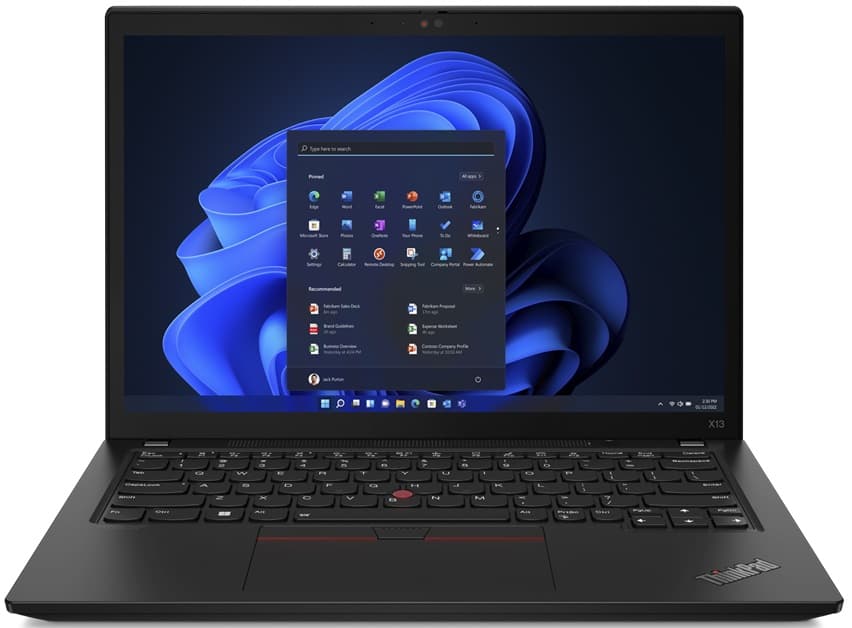
Lenovo · ThinkPad
Intel Core i5-1245U · 16GB RAM · 256GB SSD
13.3" · Windows 11 Pro
S$605.00
From S$51/mo
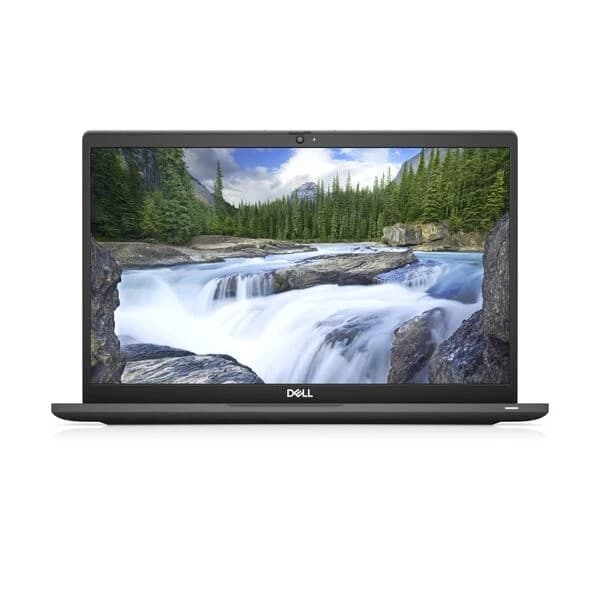
Dell · Latitude
Intel Core i7-1265U · 16GB RAM · 256GB SSD
13" · Touch · Windows 11 Pro
S$545.00
S$575.00 — was the regular price; now on sale.
From S$46/mo
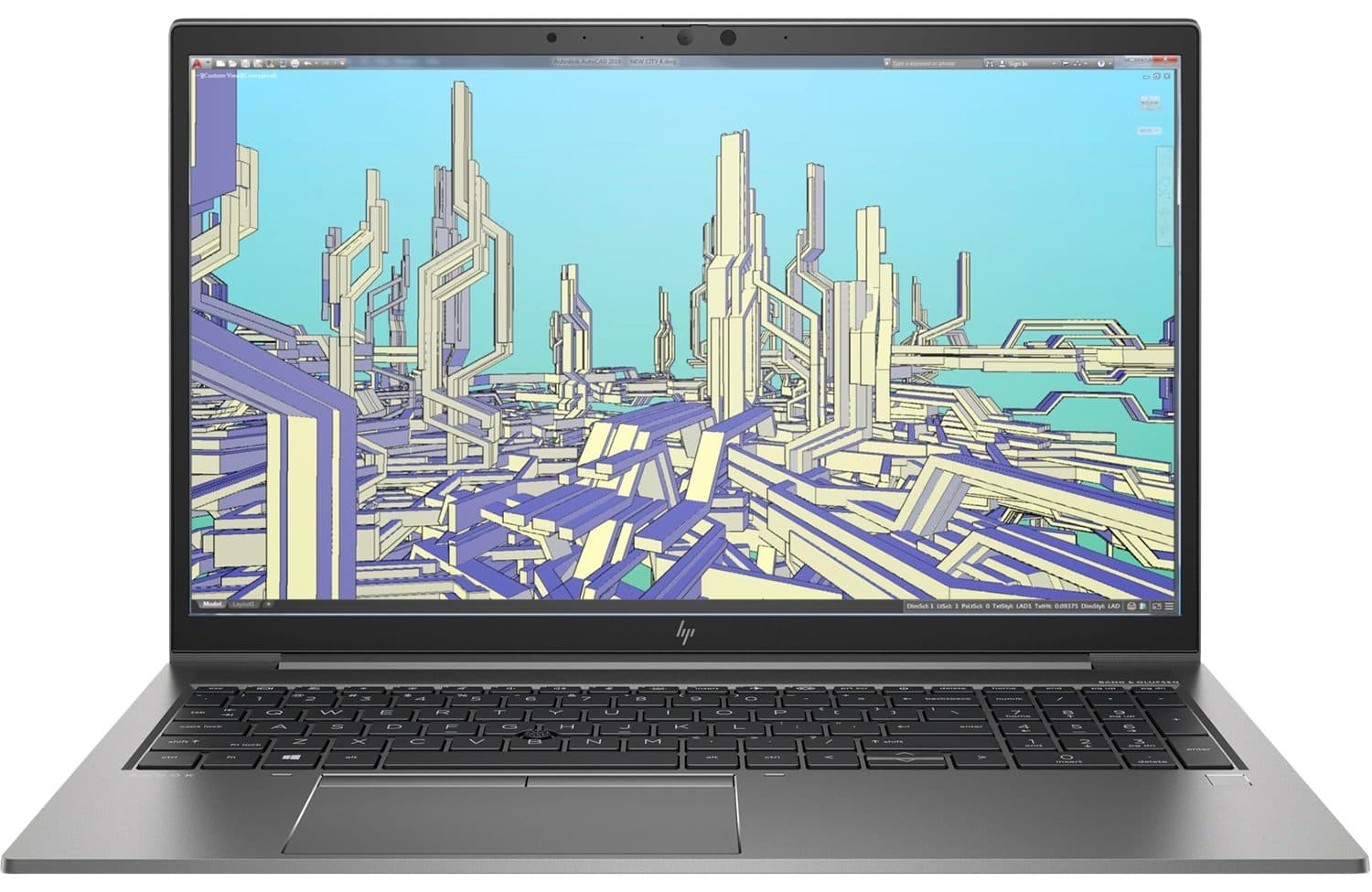
HP · ZBook
Intel Core i7-1165G7 · 32GB RAM · 512GB SSD
15.6" · Windows 11 Pro
Dedicated graphicsS$765.00
From S$64/mo
A refurbished laptop can have scratches and still perform perfectly. It can also look almost new while hiding a worn battery, loose charging port or unreliable keyboard.
Condition grades should help you understand appearance - not replace proper technical testing.
| Grade | What you should expect |
|---|---|
| Open Box / Like New | Minimal signs of handling or use |
| Excellent Refurbished | Very light cosmetic wear |
| Good Refurbished | Normal visible wear that does not affect function |
| Fair Refurbished | More obvious marks, scratches or dents, with full details shown |
A fair-condition business laptop may be an excellent value when it will spend most of its life on a desk. A student carrying the laptop around campus may prefer a lighter and cleaner unit.
Neither choice is wrong. The condition and price simply need to match.
Look for clear photographs of:
Stock photos can show you what a model looks like. They cannot show you what your laptop looks like.
“All-day battery” and “battery good” are not useful descriptions.
Battery runtime varies according to the laptop model, original battery size, screen brightness, software, workload, background activity and battery wear. No honest seller should promise an exact number of hours without explaining the test conditions.
Useful battery information can include:
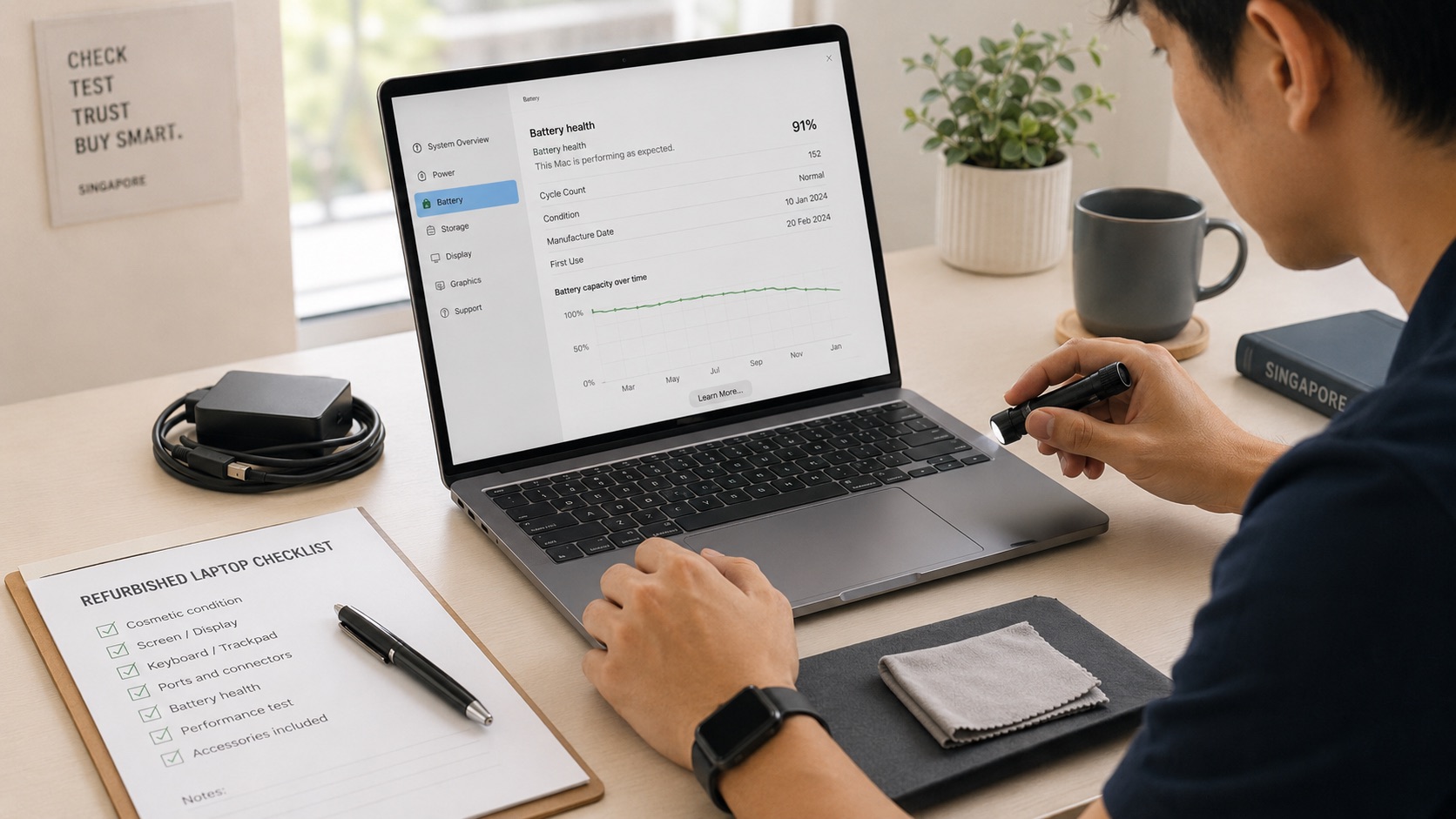
On Windows, the built-in powercfg /batteryreport command can generate a report showing battery-usage characteristics and capacity information.
On a MacBook, Apple allows users to view the battery cycle count under System Information. Apple notes that cycle limits differ by model and that many modern MacBook batteries are designed to retain up to 80% of their original capacity at their maximum cycle count.
A battery percentage alone does not tell the entire story.
A 75% battery in a laptop that originally had a large battery may still be usable. A small battery at 90% health may provide less runtime under the same workload.
Treat battery health as one piece of evidence, not the only one.
A proper inspection should go beyond booting into Windows.
Pay attention to:
Check for:
Test every key - not only the letters used in a password.
Also check:
Test the ports you actually need:
A laptop can appear fully functional until you discover that the only USB-C port you need for charging or display output is unreliable.
Confirm:
Open and close the laptop slowly.
Watch for:
Do not assume that the charger is original, correctly rated or included.
The listing should state:
A low-wattage or poor-quality charger may charge slowly, disconnect under heavy use or fail to provide enough power for a workstation laptop.
“Six-month warranty” sounds reassuring, but the details still matter.
Before buying, check:
Accidental damage, cracked screens, liquid damage and misuse are normally treated differently from hardware failure under ordinary use. The policy should make that distinction clearly.
At Flikgear, laptops are sold with a six-month warranty, battery coverage, Singapore-based support and a seven-day return window. Each unit is prepared through a 45-step check covering areas such as the battery, display, keyboard, ports, performance and software.
Always read the current warranty and returns pages before purchasing, as the published policy - not a summary inside an article - governs your order.
A good laptop from an unreliable seller can still become a bad purchase.
Look for:
Be cautious when a seller:
Sometimes a very low price reflects cosmetic damage and is a genuine bargain. Sometimes it reflects a missing charger, weak battery, unsupported operating system or hardware problem.
The seller should be willing to explain which one it is.
Once the laptop arrives, do not leave it in the box for six days and test it on the seventh night.
Use it as you normally would.
A practical first-day test includes:
Back up your files independently. A warranty protects the hardware according to its terms; it is not a substitute for a proper backup.
Keeping working electronics in use for longer can reduce unnecessary electronic waste. Singapore’s National Environment Agency specifically encourages repairing equipment where feasible and reusing or donating items that remain in working condition.
That does not mean every old laptop should be kept alive forever.
A machine that is unsupported, unreliable or too inefficient for the job may not be a sensible purchase. The goal is to extend the useful life of capable technology - not to sell outdated hardware for the sake of it.
Before buying, you should be able to answer:
When those answers are clear, buying refurbished becomes much less of a gamble.
It becomes a straightforward value decision.
It can be, provided the seller clearly discloses the laptop’s specifications, condition, battery information, warranty and return terms. Choose a seller with local support, proper testing and photographs of the actual unit.
There is no single age limit. A well-built business laptop that remains officially supported may be a better choice than a newer entry-level consumer model. Check software support, battery condition, performance and availability of parts rather than judging only by the year.
Eight gigabytes can still handle documents, web browsing, streaming and lighter study tasks. Sixteen gigabytes is the more comfortable choice for heavier multitasking, programming, creative applications and keeping the laptop useful for longer.
Scratches are mainly a cosmetic issue when they do not affect the screen, hinges, ports or structure. A visibly worn laptop can offer excellent value if the marks are disclosed, the device is fully functional and the price reflects its condition.
It depends on the model, price, original battery size and how you plan to use it. Ask for actual capacity information and warranty coverage rather than relying only on phrases such as “battery good”. Buyers who work away from a charger should prioritise stronger battery condition.
Sometimes. A refurbished business-grade laptop may offer better build quality, keyboard, ports, RAM and repairability than a similarly priced new entry-level laptop. A new laptop may be the better choice when you need the longest manufacturer warranty, the newest hardware or a highly specific feature.
Browse Flikgear’s available refurbished laptops with real unit photos, exact specifications, condition information and local warranty support.
About the Author
Zac GJ, Flikgear
Flikgear - Singapore's trusted refurbished laptop brand